Control a Projector Without a Remote: 4 Options
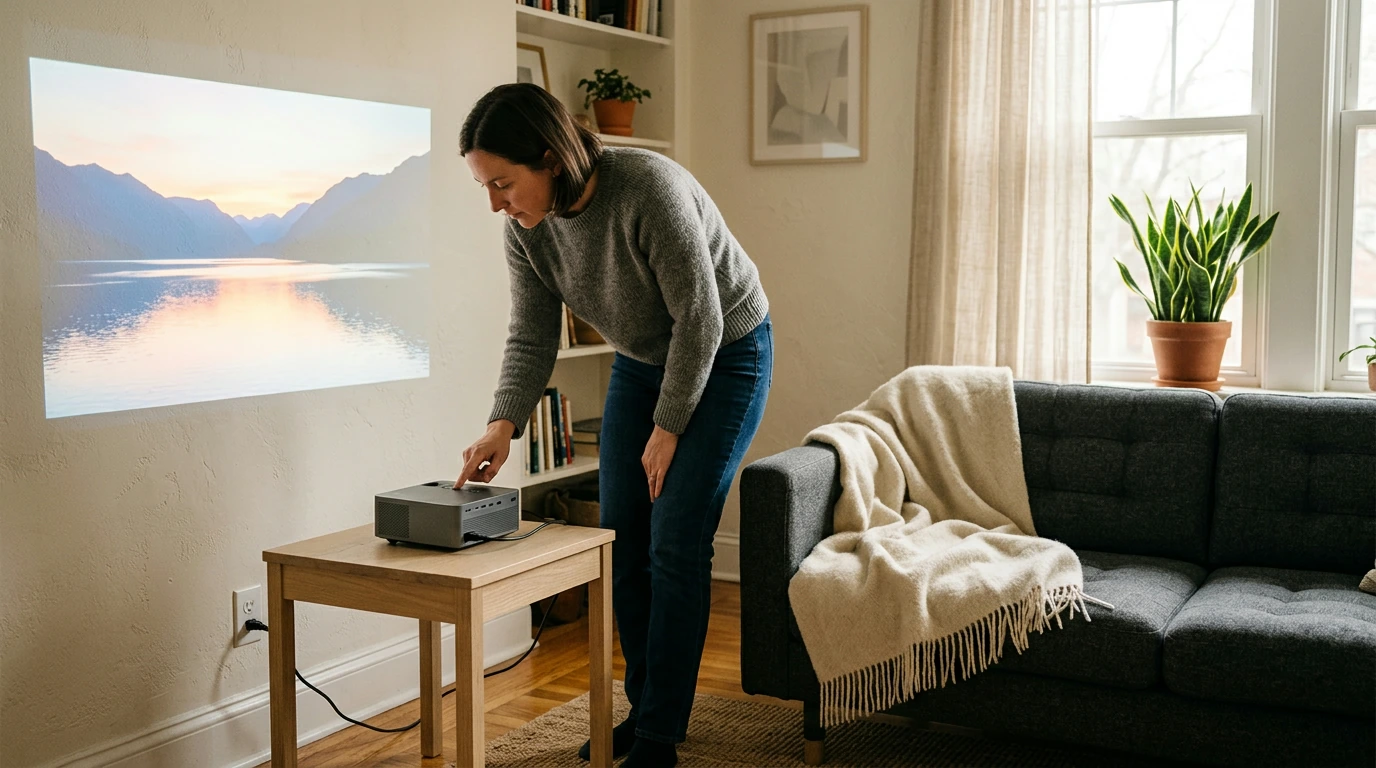
Yes. Many projectors have buttons on the unit for power, input selection, and menu navigation. Some models also support a phone app, a USB mouse, or a compatible replacement remote. The available options depend on your projector’s model, so start by checking the controls on the device itself.
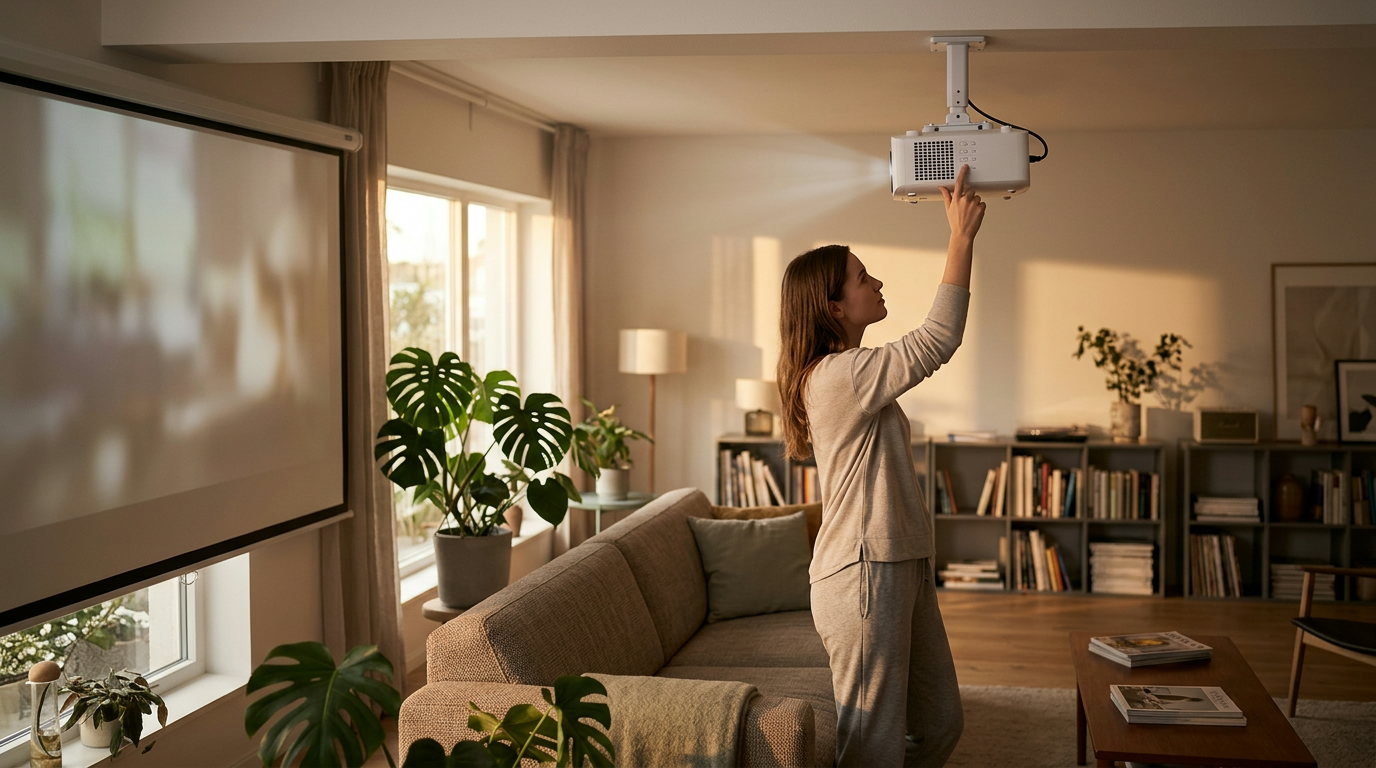
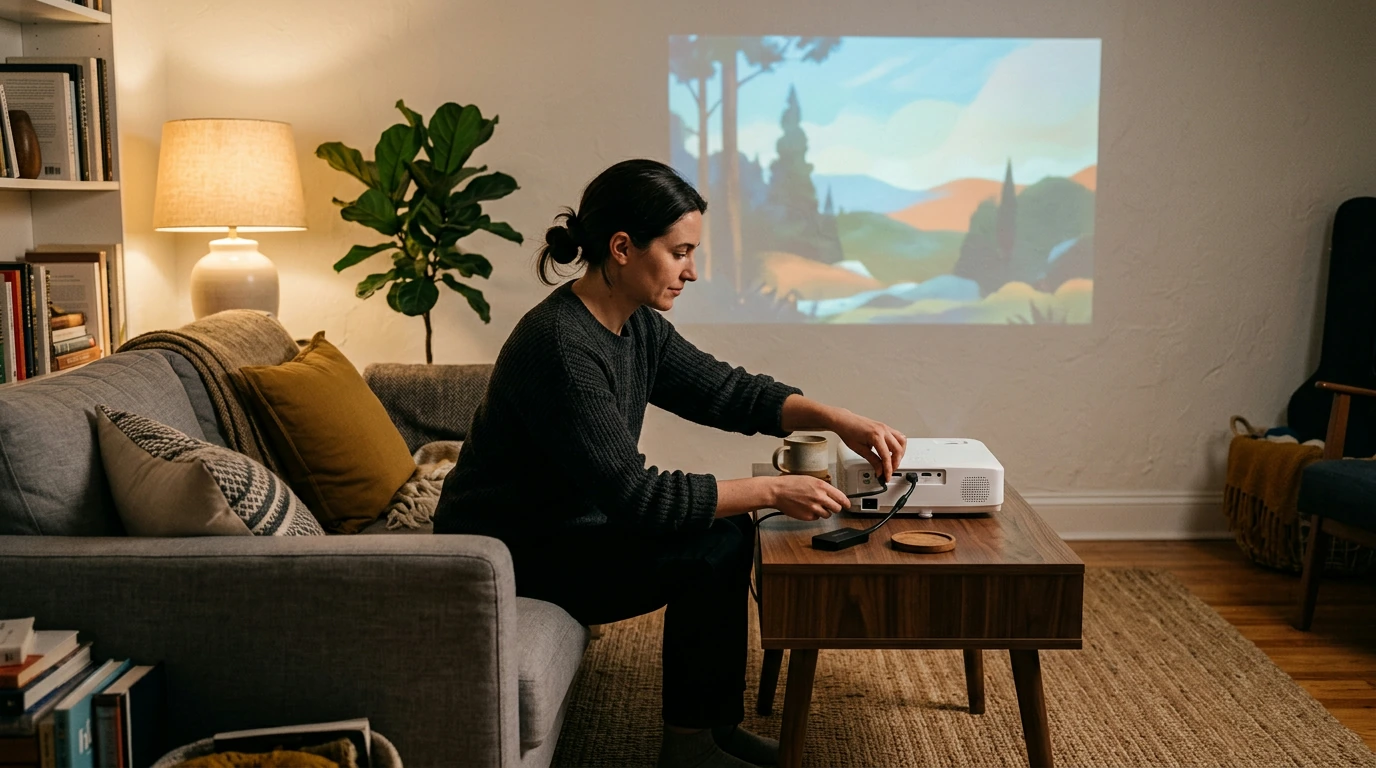
Look along the top, sides, and back for a power button or a small control panel. Once the projector is on, press Menu or Source to see whether you can select an input and adjust settings using the remaining buttons. If you cannot find the controls, check the model’s user manual for a button diagram.
Featured in this guide
4K Smart Mini Projector with 3D, Android OS, WiFi & Built-in Battery
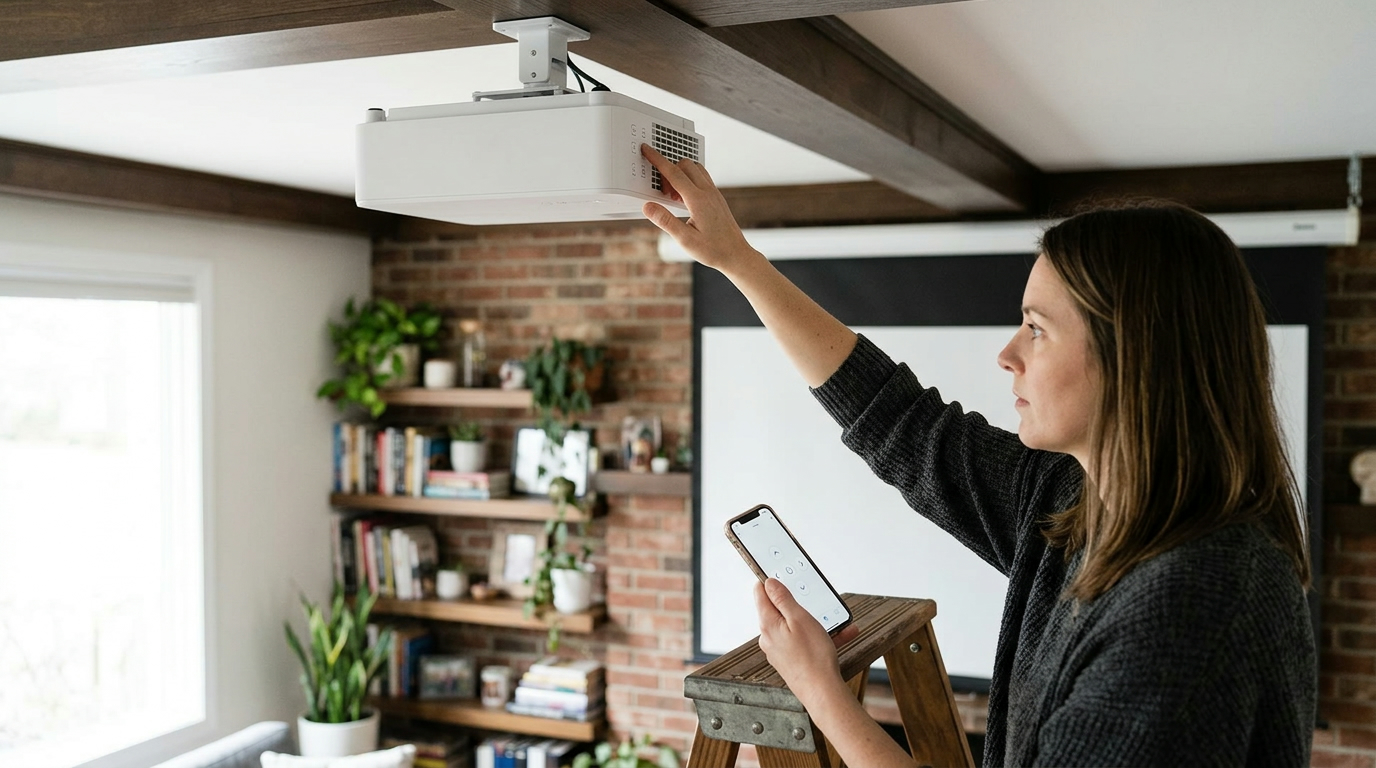
A manufacturer’s app may let you change inputs, navigate menus, and adjust volume from your phone. Check the projector’s manual or product page for the supported app and connection method; Wi-Fi and Bluetooth support alone do not guarantee app-based remote control. Follow the pairing instructions before relying on the app as your only control option.
Some smart projectors accept a USB mouse, which can make on-screen menus easier to navigate when the remote is missing. Plug a mouse into the projector’s USB port and check whether a pointer appears. This is model-dependent: a USB port intended only for media playback or power may not accept mouse input.
If the built-in controls are limited, look for a replacement remote listed as compatible with your exact projector model. Match the model number rather than the projector’s appearance, and check whether the remote needs pairing. For more on features to check when choosing a compact model, read the 4K smart mini projector guide.
Use the projector’s built-in buttons to turn it on and select an input. If your model supports an app or USB mouse, either may offer more menu control.
Yes, if your projector supports a compatible remote-control app. Check the model’s instructions for the required app and pairing steps.
Press the power button on the projector itself. If it does not respond, confirm that the projector is connected to power and that any physical power switch is on.
Start with its onboard buttons for power, menus, and input selection. You can also check whether your model supports an app or USB mouse.
Find the projector’s model number and check its manual for alternative controls. For regular use, order a replacement remote confirmed to work with that model.
Some manufacturers provide apps for specific projector models. Check your projector’s manual or product page before downloading one, since app support is not universal.


Leave a comment
You must be logged in to post a comment.