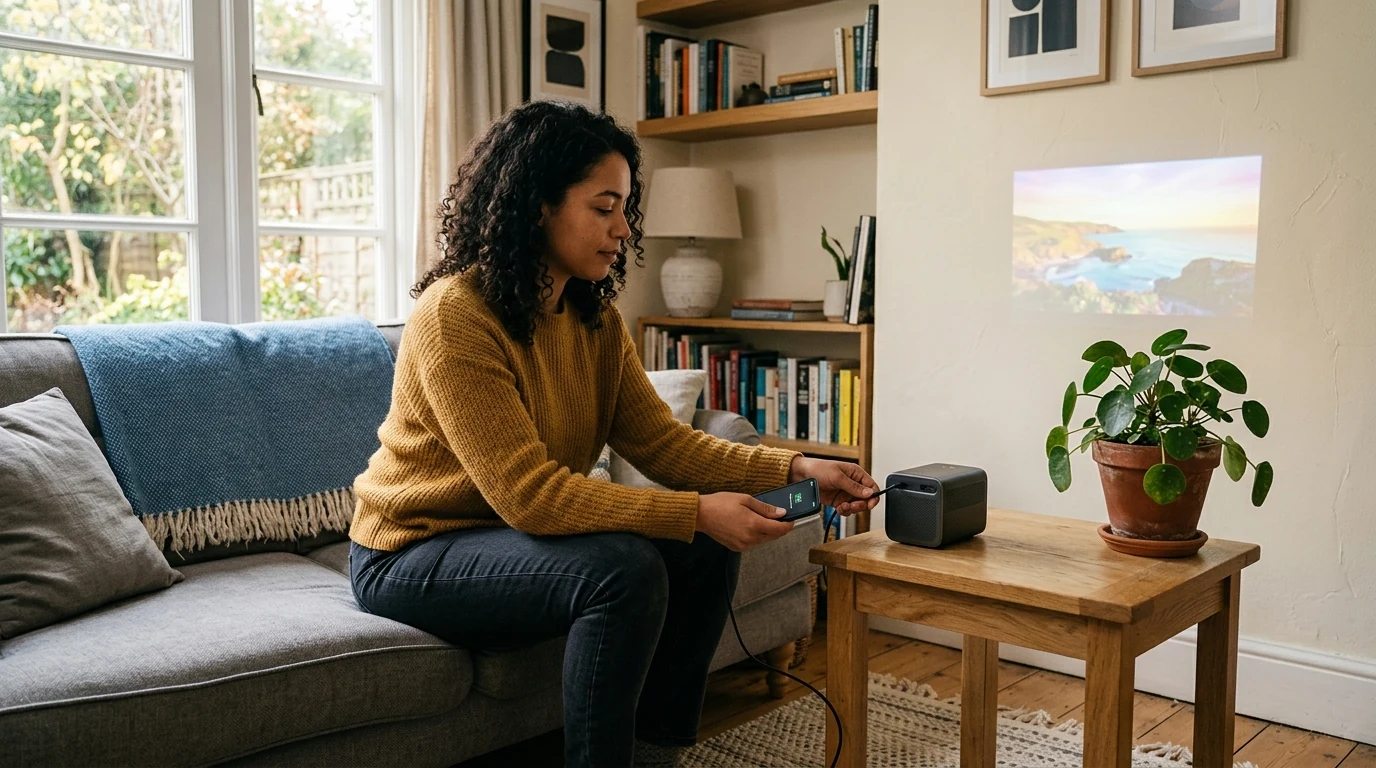
How to Connect Your Phone to a Projector: 2 Ways
Start by checking which connections your projector supports: HDMI, wireless screen mirroring, or both. Then choose the method that matches your phone. A cable is often the simplest option when Wi-Fi is unavailable, while wireless mirroring gives you more freedom to move around.

Most phones need an adapter to connect to a projector’s HDMI port. For a USB-C phone, check whether it supports video output over USB-C before buying a USB-C-to-HDMI adapter; a USB-C charging port alone does not guarantee video output. For an iPhone, choose an adapter that fits its Lightning or USB-C port, then connect an HDMI cable from the adapter to the projector. Select the corresponding HDMI input on the projector.
Featured in this guide
4K Smart Mini Projector with 3D, Android OS, WiFi & Built-in Battery
Turn on the projector’s wireless display feature and follow its instructions to put it in pairing mode. On a compatible Android phone, open the screen-casting controls; on an iPhone, use Screen Mirroring if the projector supports AirPlay. Many wireless setups require both devices to be on the same Wi-Fi network, so check the projector’s instructions if it does not appear on your phone.
Once connected, unlock your phone and open the content you want to show. If the picture is cropped or blurry, adjust the projector’s focus, placement, and aspect-ratio settings before changing settings on your phone. If sound stays on the phone, check the projector’s volume and audio-output settings; some adapters and apps handle audio differently.
For the full product context, see the main Owleys guide.
Check that the projector is set to the right input and that your adapter supports video output from your phone. For wireless connections, confirm that both devices meet the casting requirements and are on the required network.
Sometimes, but a standard USB charging cable usually will not mirror your screen. Your phone and projector must support a compatible USB video connection, or you will need a video adapter.
Enable the projector’s wireless display mode, then select it from your phone’s casting or screen-mirroring menu. If it is not listed, check network and casting compatibility.
Use an adapter that matches your iPhone’s port and connect it to the projector with HDMI. You can also use Screen Mirroring when the projector supports AirPlay.
Yes, if the projector supports AirPlay or you use a compatible HDMI adapter. For AirPlay, open Control Center, tap Screen Mirroring, and select the projector.



Leave a comment
You must be logged in to post a comment.