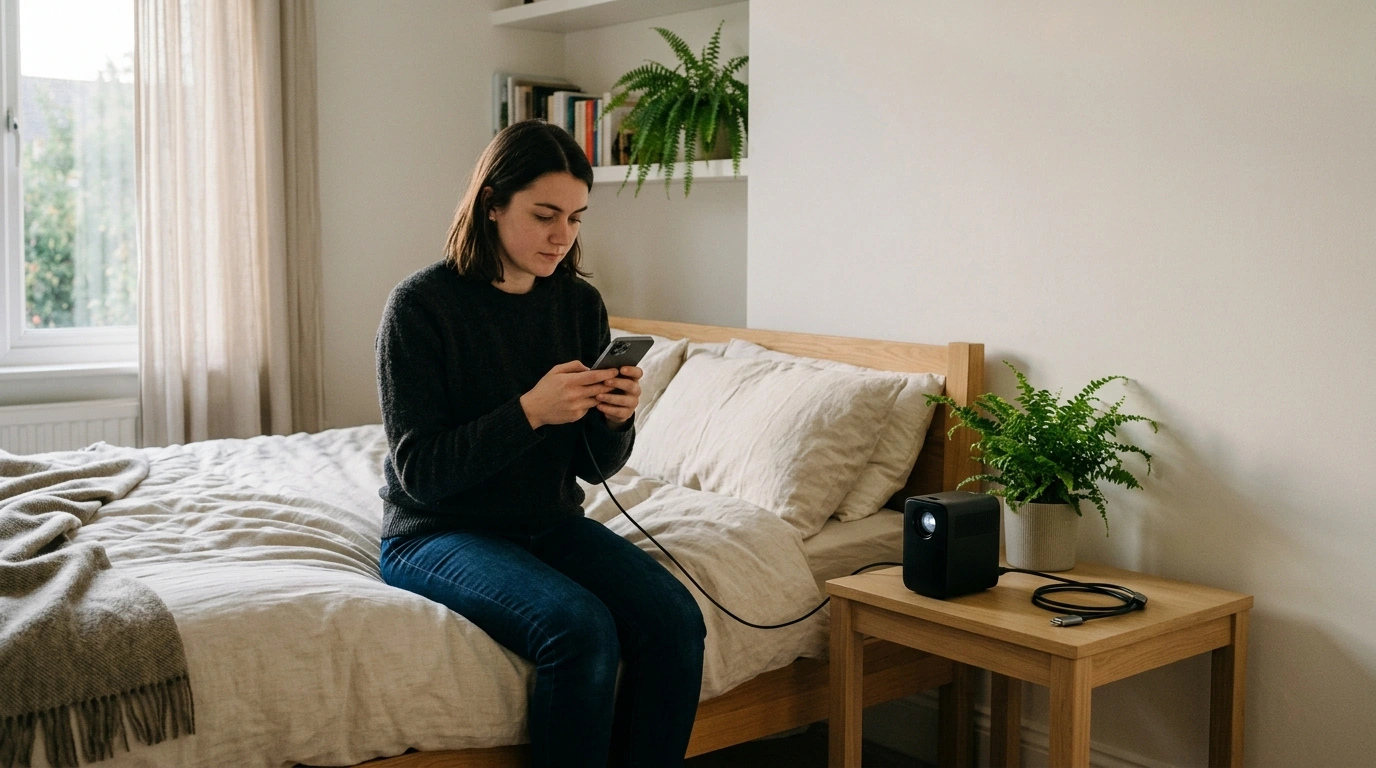
iPhone Won’t Play Movies on Your Projector? Try This
The connection may be working even if the movie will not play. Some streaming apps restrict screen mirroring or video output, so your projector might show your iPhone’s home screen but display a black screen when you start a movie. First, try projecting a photo or a video recorded on your iPhone. If that works, check the movie app’s playback and external-display rules before changing projector settings.
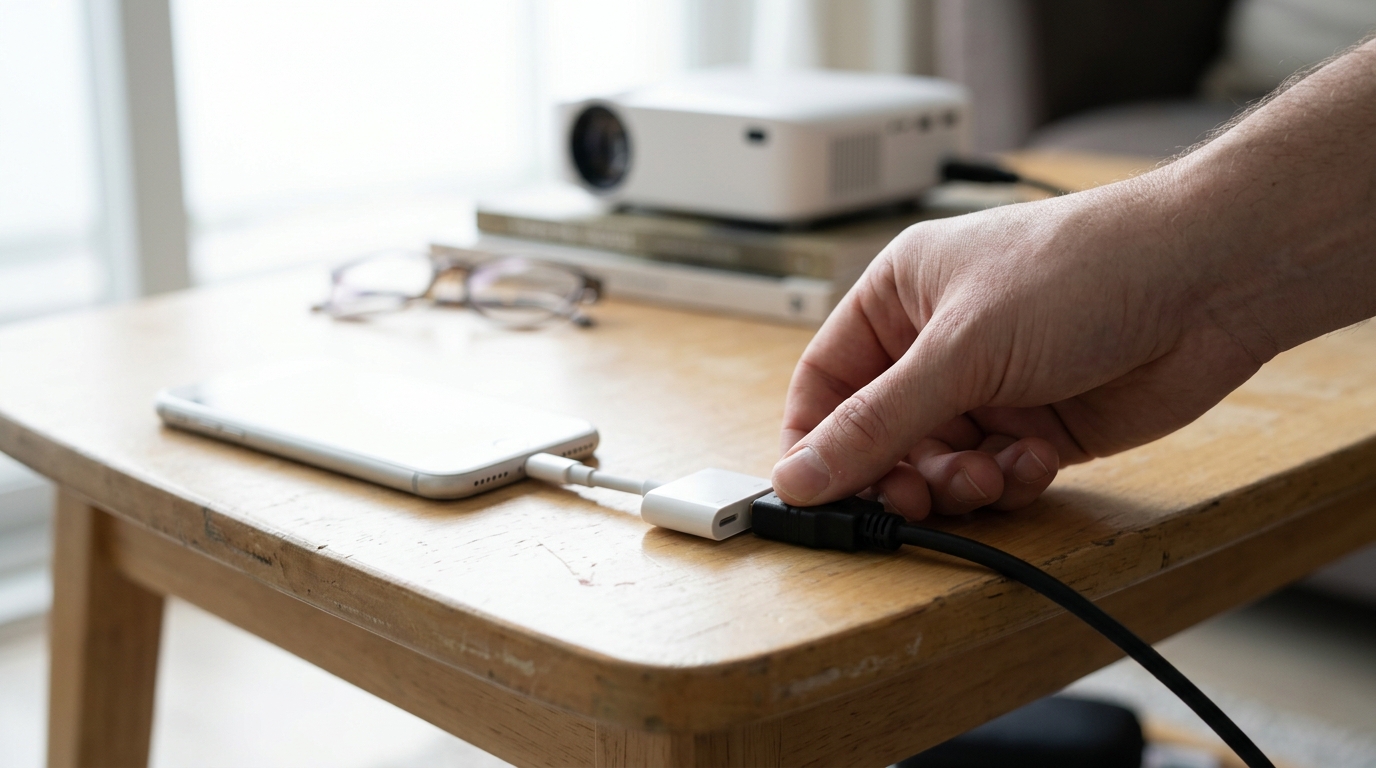
Not every wireless projector uses AirPlay, the feature iPhones commonly use to send video to a screen. Check the projector’s specifications for AirPlay or iPhone compatibility rather than assuming that “wireless” means it can mirror your phone. If you use a cable, confirm that the projector has an HDMI input and that your iPhone’s adapter matches its port: USB-C on newer models or Lightning on older ones.
Featured in this guide
4K Smart Mini Projector with 3D, Android OS, WiFi & Built-in Battery
With a wired setup, select the projector’s HDMI input after connecting the iPhone, adapter, and cable. A blank screen can come from a loose connector, an incompatible adapter, or a damaged cable, so test each part with another display or device if possible. Once your iPhone screen appears, try a locally saved video before opening a streaming app; that separates connection problems from app playback restrictions.
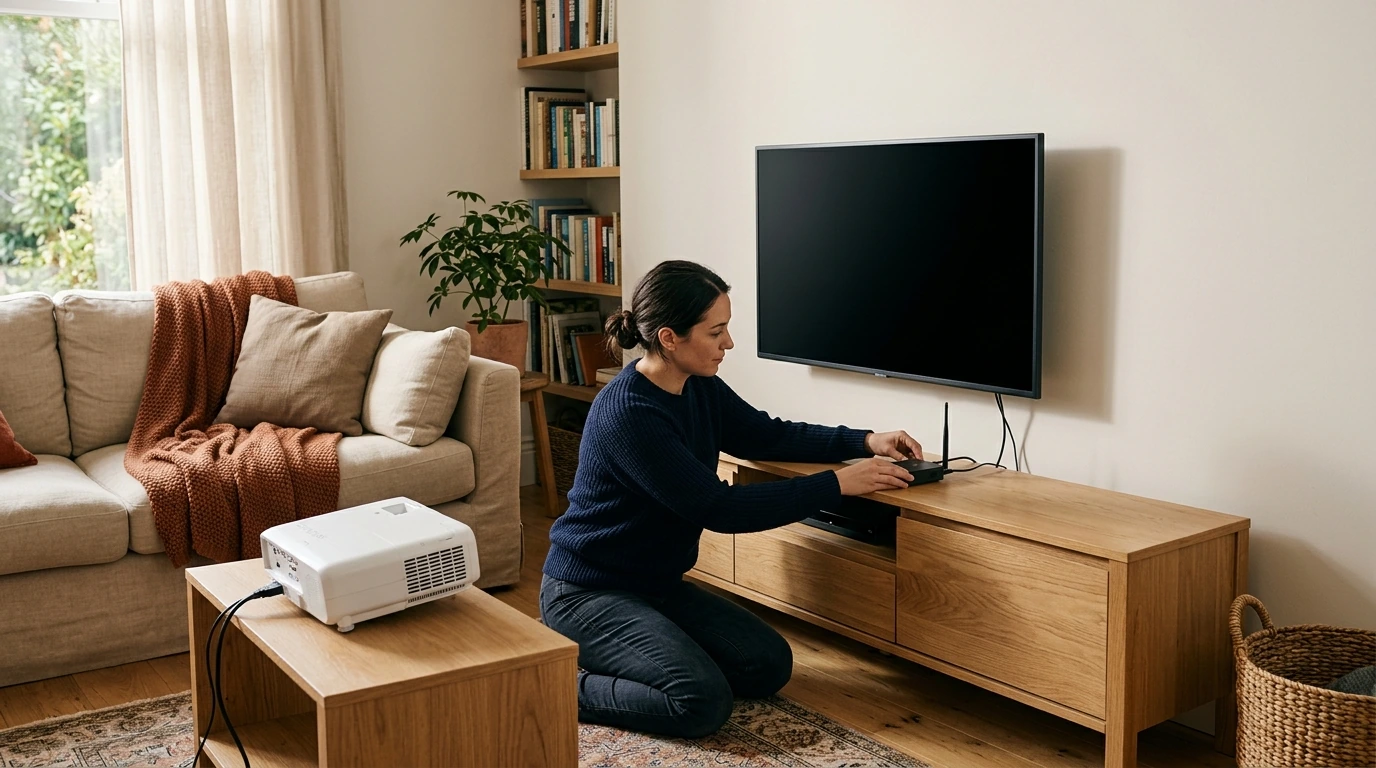
If mirroring works but a particular service will not play movies, use a streaming device connected to the projector’s HDMI port and open the service’s app there. You can also check whether your projector has a compatible built-in app. For more projector features and connection considerations, see the 4K smart mini projector guide. Verify your projector’s ports, wireless features, and supported apps before buying an adapter or streaming device.
If your iPhone screen appears but the movie stays black, the streaming app may restrict mirroring or external video output. If nothing appears at all, check the projector’s input, adapter, cable, or AirPlay connection.
Use AirPlay with a compatible projector on the same Wi-Fi network, or connect your iPhone to the projector’s HDMI input with a compatible adapter. For a streaming app that blocks mirroring, try its app on an HDMI streaming device instead.



Leave a comment
You must be logged in to post a comment.