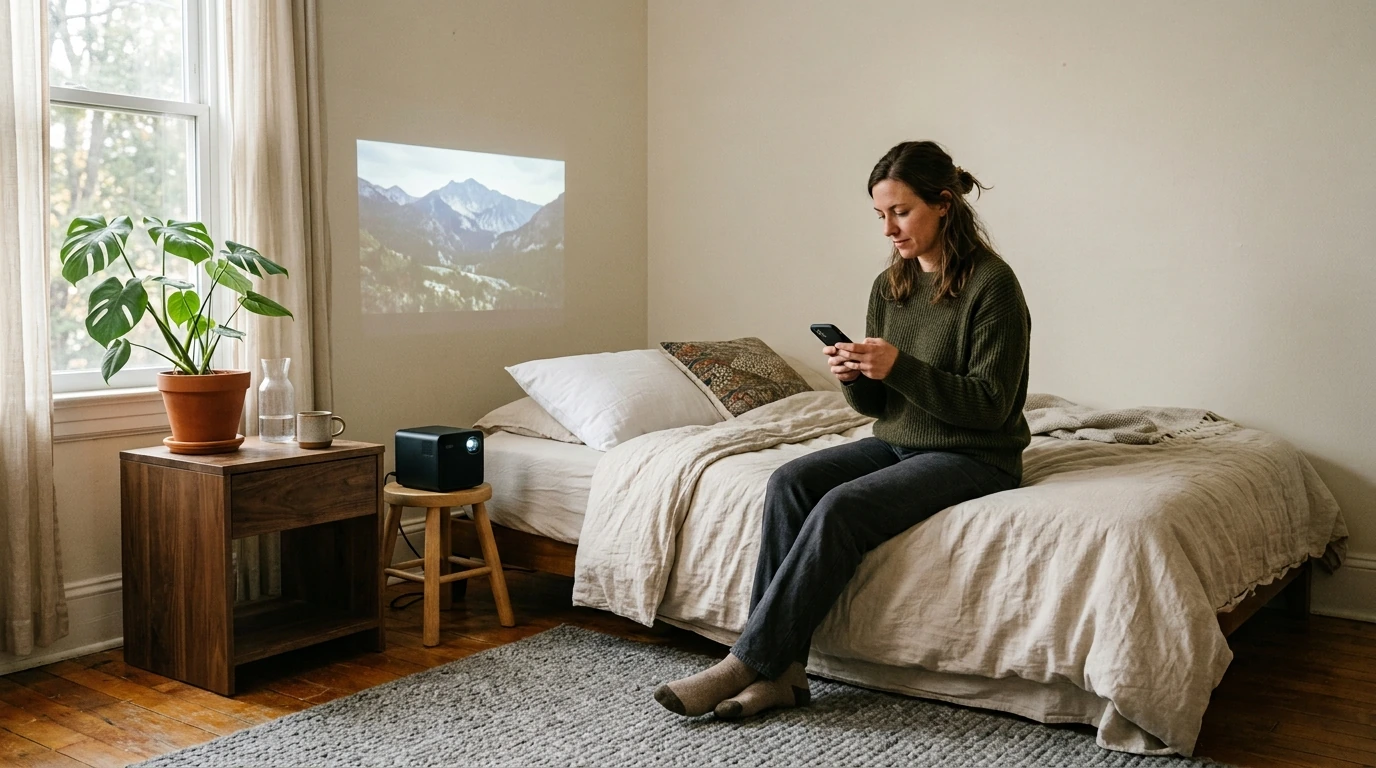
Phone Not Casting to Projector? 4 Fixes to Try
Your phone may not cast because the projector is on the wrong input, the devices are on different Wi-Fi networks, or they do not support the same wireless casting method. Start by confirming that the projector is set to its screen-mirroring input, then check the connection method your phone and projector both support.
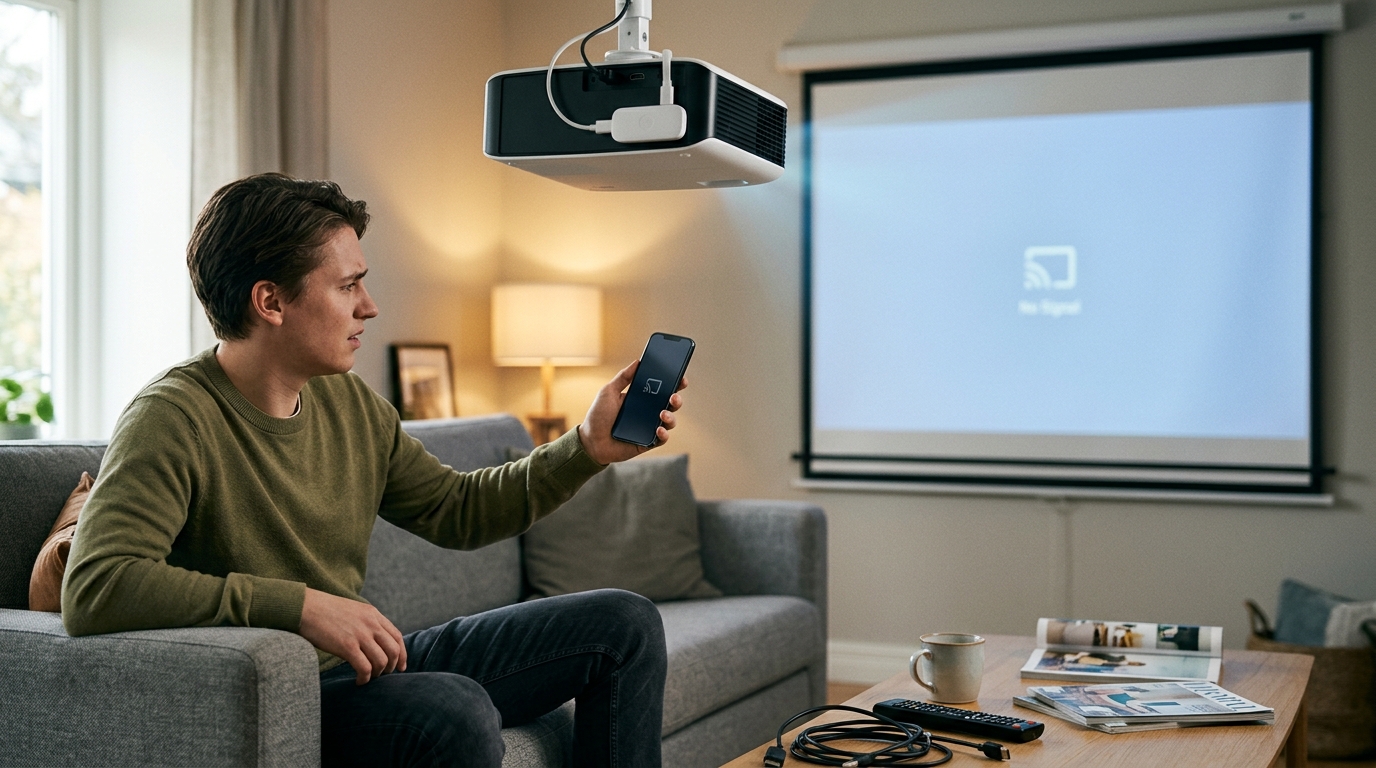
Many wireless casting setups require your phone and projector to use the same Wi-Fi network, not merely have Wi-Fi turned on. Connect both devices to the same network, switch the projector to its wireless display or screen-mirroring input, and try again. If you use a guest network, check whether it prevents devices from communicating with each other.
Featured in this guide
4K Smart Mini Projector with 3D, Android OS, WiFi & Built-in Battery
A projector with built-in apps does not necessarily support every phone’s screen-mirroring protocol. Check the projector’s specifications for AirPlay, Chromecast, Miracast, or another supported method, then select the matching option on your phone. If the methods do not match, a compatible streaming device or wired adapter may be needed.
A temporary connection issue can leave a projector undiscoverable even when the settings appear correct. Restart your phone and projector, then turn screen mirroring or casting off and back on before searching for the projector again. Install available system updates on both devices, since updates can resolve connection problems.
A cable can help determine whether the problem is limited to wireless casting. Check whether your phone supports video output through its USB-C or Lightning port, and use a compatible adapter to connect it to the projector’s HDMI input. Select that HDMI input on the projector; a charging cable alone will not necessarily carry video.
For more on projector features and connection options, see the 4K smart mini projector guide.
Use a wireless method supported by both devices, or connect your phone with a compatible video adapter and HDMI cable. Select the corresponding wireless or HDMI input on the projector.
Screen sharing may fail if the projector is on the wrong input or does not support your phone’s mirroring method. Select the projector’s mirroring input and verify its supported protocols.
Your Samsung phone may not find the projector if they are on different networks or the projector does not support its wireless mirroring method. Check for the projector in Smart View and confirm compatibility.
For a compatible wireless projector, open Smart View on your Samsung phone and select the projector. Alternatively, check whether your phone supports video output through a USB-C-to-HDMI adapter.




Leave a comment
You must be logged in to post a comment.