How to Cast a TV Screen to a Projector: What Works
To show a TV program on a projector, connect the device supplying the picture—such as a cable box, streaming device, or game console—to the projector instead of trying to cast from the TV itself. Most TVs are designed to receive video, not send their on-screen picture to another display, so a TV’s HDMI ports usually cannot serve as projector outputs.
If you watch through an app built into your TV, open that app on another compatible source device or on the projector, if the app is available there. Our guide to the 4K Smart Mini Projector with 3D, Android OS, WiFi & Built-in Battery covers a projector with Android OS and WiFi, but those features alone do not establish which apps or wireless casting methods it supports.
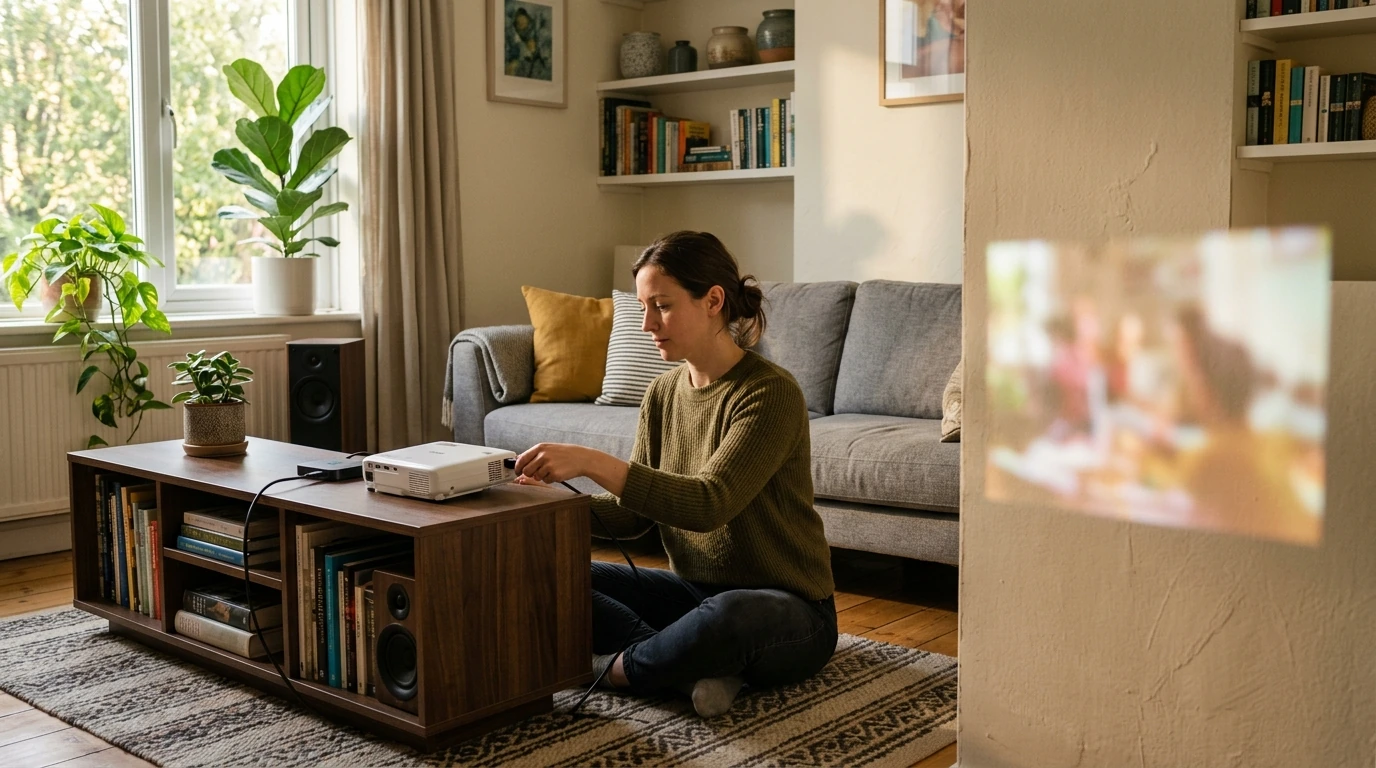
For a wired setup, connect your source device to a compatible projector input, select that input on the projector, and start playback on the source. If you want the same source to feed both your TV and projector, an HDMI splitter may work, provided its connections and the source’s content-protection requirements are supported throughout the setup.
For wireless viewing, look for a screen-mirroring or casting option on your phone, computer, or streaming device, then use a matching option on the projector or a compatible receiver connected to it. WiFi access by itself does not mean two devices share a casting protocol, so a wired connection is often the simpler choice when pairing fails.
Featured in this guide
4K Smart Mini Projector with 3D, Android OS, WiFi & Built-in Battery
Rather than mirroring the TV itself, send the TV’s source device to the projector using a compatible wired connection or casting method. For an app that runs only on your TV, you will need another device that can run or output that content.
Connect your phone or computer through a supported video connection, or select a wireless casting method supported by both it and the projector or receiver. Then choose the corresponding input on the projector and enable screen mirroring or display output on your device.




Leave a comment
You must be logged in to post a comment.