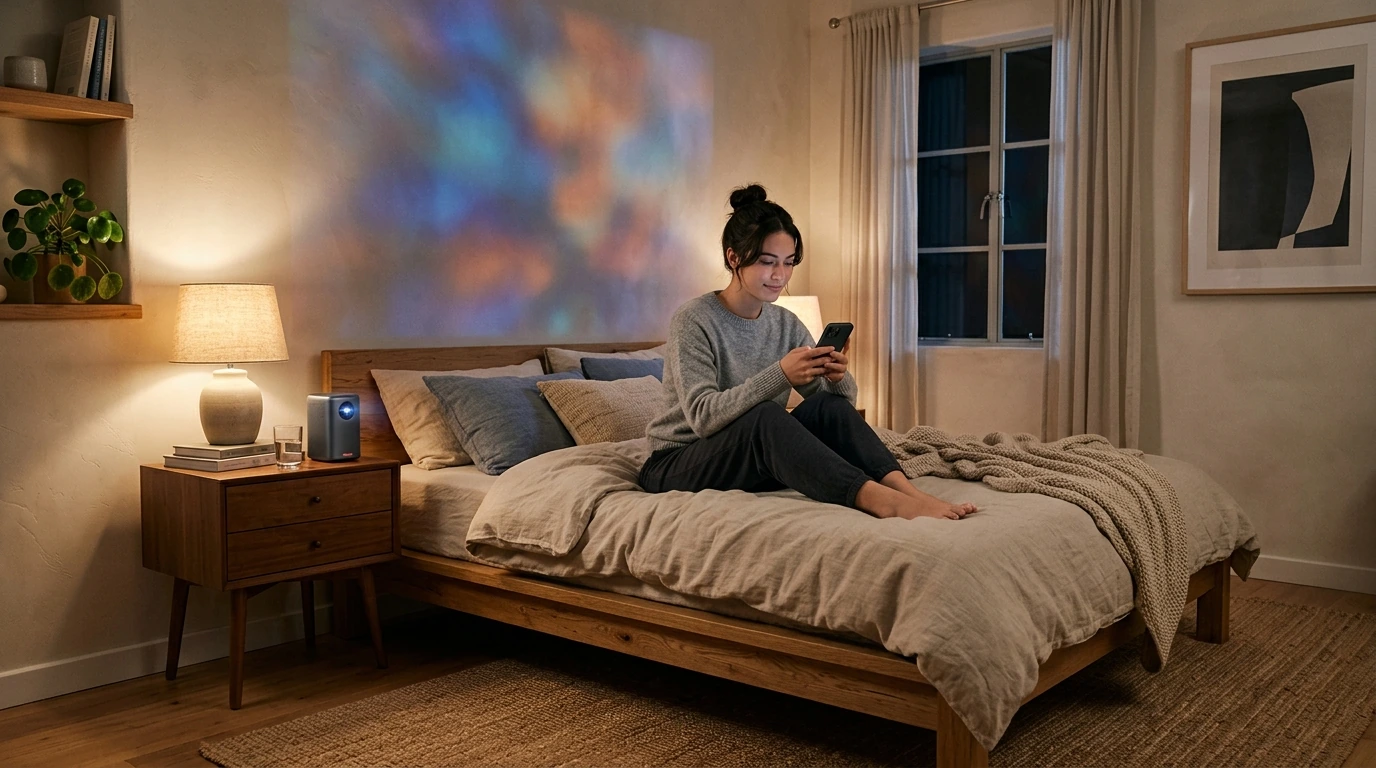
How to Project Your iPhone Screen Onto a Wall
You need a projector, a suitable connection, and a light-colored wall or projection screen. Check the projector’s inputs before choosing a cable or wireless method: an HDMI port works with an iPhone adapter, while wireless mirroring requires a compatible receiver or built-in AirPlay support. For a sharper picture, use a smooth, matte wall and dim the room lights.

A wired connection is a practical choice when you want to avoid Wi-Fi interruptions. For an iPhone with a Lightning port, use an Apple Lightning Digital AV Adapter; for a USB-C iPhone, use a compatible USB-C-to-HDMI adapter or cable. Connect the adapter to your iPhone, run an HDMI cable to the projector, then select the correct HDMI input on the projector. Some streaming apps restrict video output, so test the app you plan to use.

Featured in this guide
4K Smart Mini Projector with 3D, Android OS, WiFi & Built-in Battery
If the projector supports AirPlay, connect it and your iPhone to the same Wi-Fi network. Open Control Center on your iPhone, tap Screen Mirroring, and select the projector. If your projector does not support AirPlay, connect an AirPlay-compatible streaming device to its HDMI port and select that input. Check both devices for software updates if the receiver does not appear.
Place the projector on a stable surface facing the wall, then adjust its distance until the image reaches the size you want. Use the focus control to sharpen text and edges, and position the projector as straight-on as possible to reduce distortion. A blank, matte wall generally looks better than a textured or glossy one; closing curtains can make a noticeable difference.
Confirm that the projector offers an HDMI input or an iPhone-compatible wireless mirroring option; “Wi-Fi” alone does not guarantee AirPlay support. Compare its brightness, native resolution, speaker options, and power requirements with where you plan to use it. If portability matters, check whether a battery is built in or whether external power is required. For more features to compare, read the mini projector guide.
Connect your iPhone to a projector using a compatible HDMI adapter, or mirror it to an AirPlay-compatible projector or receiver. Aim the projector at a smooth wall, dim the lights, and adjust the focus.
Not as a bright, usable image: an iPhone screen does not produce the focused light needed to project onto a wall. You can mirror your phone to a TV or monitor instead, but displaying it on a wall requires a projector.




Leave a comment
You must be logged in to post a comment.