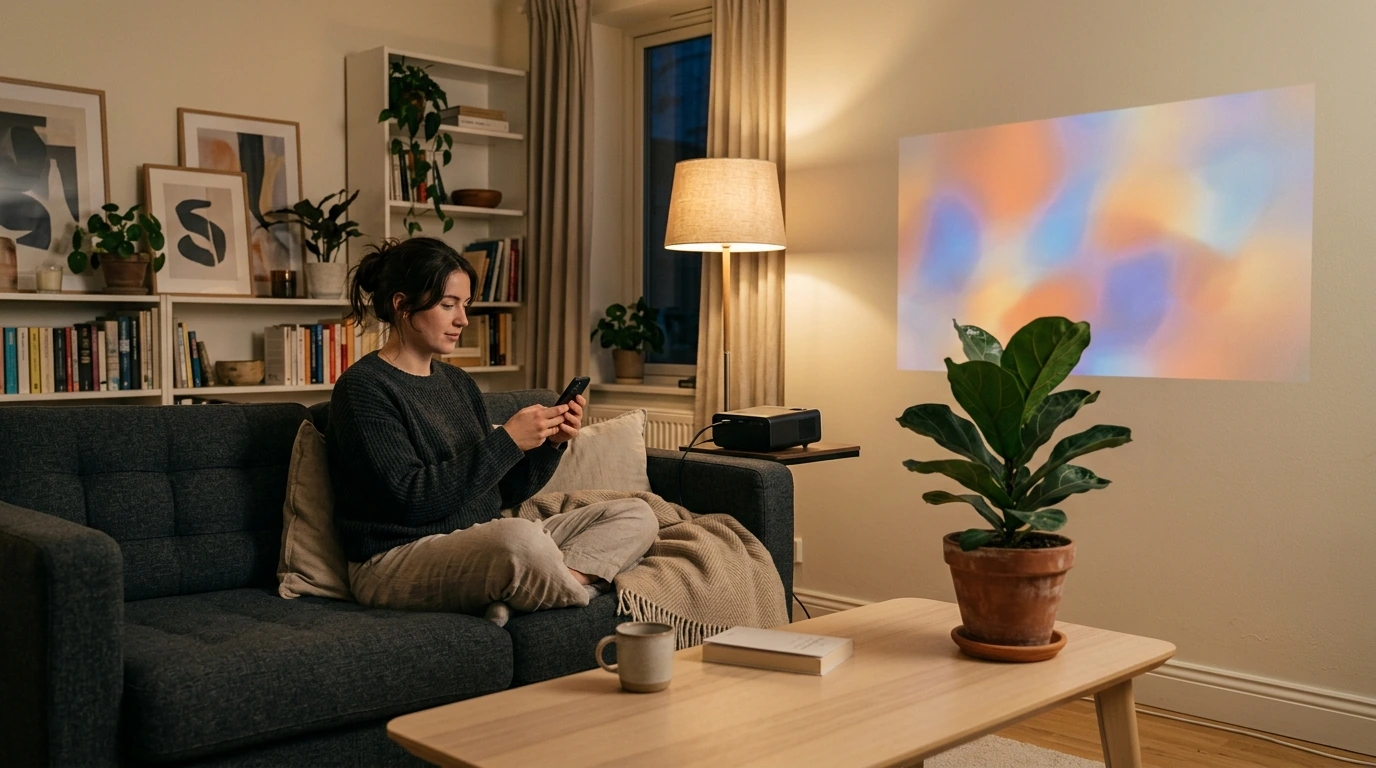
Display Your Phone Screen on a Projector: Wired or Wireless
You can display your phone screen with a wireless mirroring feature or a compatible cable and adapter. First, check which inputs your projector has and which connections your phone supports. Then choose the method below that matches both devices.

Look for an HDMI port, a USB-C video input, or built-in screen mirroring. A USB port alone does not necessarily accept video from a phone, so check the projector’s specifications before buying an adapter. For more projector features to compare, see this guide to smart mini projectors.
Featured in this guide
4K Smart Mini Projector with 3D, Android OS, WiFi & Built-in Battery
Connect the phone and projector to the same Wi-Fi network if the projector’s mirroring instructions require it. Open your phone’s Cast or Screen Cast control, select the projector, and accept any connection prompt on the projected screen. Menu names and supported casting methods vary by phone and projector.
Check the listed dimensions for mirror an android phone wirelessly against the available vehicle space before use.
If the projector supports AirPlay, connect both devices to the same Wi-Fi network. Open Control Center on the iPhone, tap Screen Mirroring, and select the projector. If the projector does not support AirPlay, use a compatible streaming device or a wired connection instead.
For a wired connection, plug an HDMI cable into the projector and use an adapter suited to your phone. Some USB-C phones support video output, but not all do; verify USB-C video compatibility before purchasing. For an iPhone, choose an adapter that matches its connector and supports HDMI output, then select the projector’s HDMI input.
On your Android phone, open Cast or Screen Cast and select a compatible projector. Follow any prompt on the projector to finish mirroring your Android screen.
Connect your mobile phone using a supported wireless mirroring feature or an HDMI cable with the appropriate adapter. Check both devices’ specifications before choosing a cable or wireless method.
To mirror your iPhone screen, open Control Center, tap Screen Mirroring, and choose an AirPlay-compatible projector. Keep both devices on the same Wi-Fi network if required.
Display from an iPhone to a projector with AirPlay if the projector supports it. Otherwise, connect a compatible HDMI adapter and cable, then switch the projector to its HDMI input.
Your phone cannot normally project its screen onto a wall by itself. Connect the phone to a projector, then aim the projector at a light-colored, flat wall.




Leave a comment
You must be logged in to post a comment.