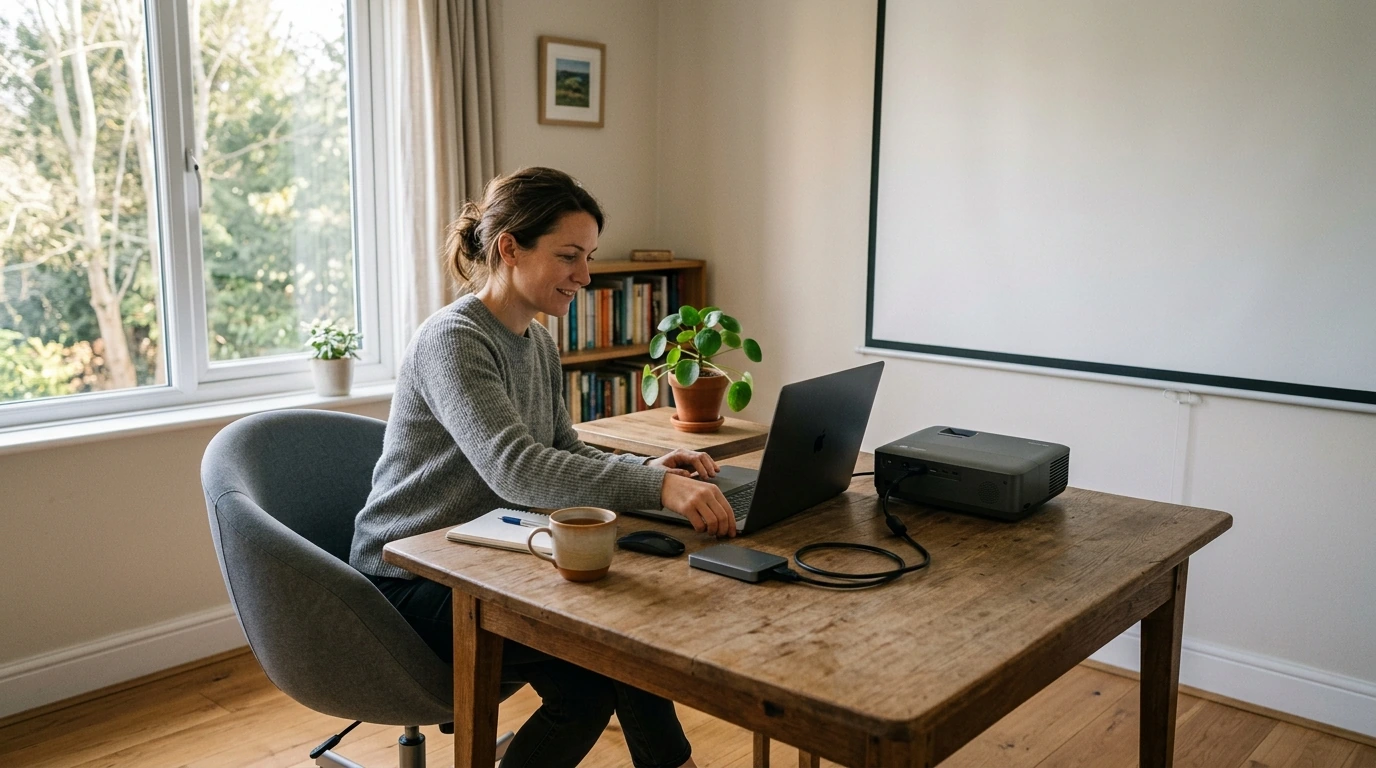
How to Connect to a Projector: HDMI and Other Options
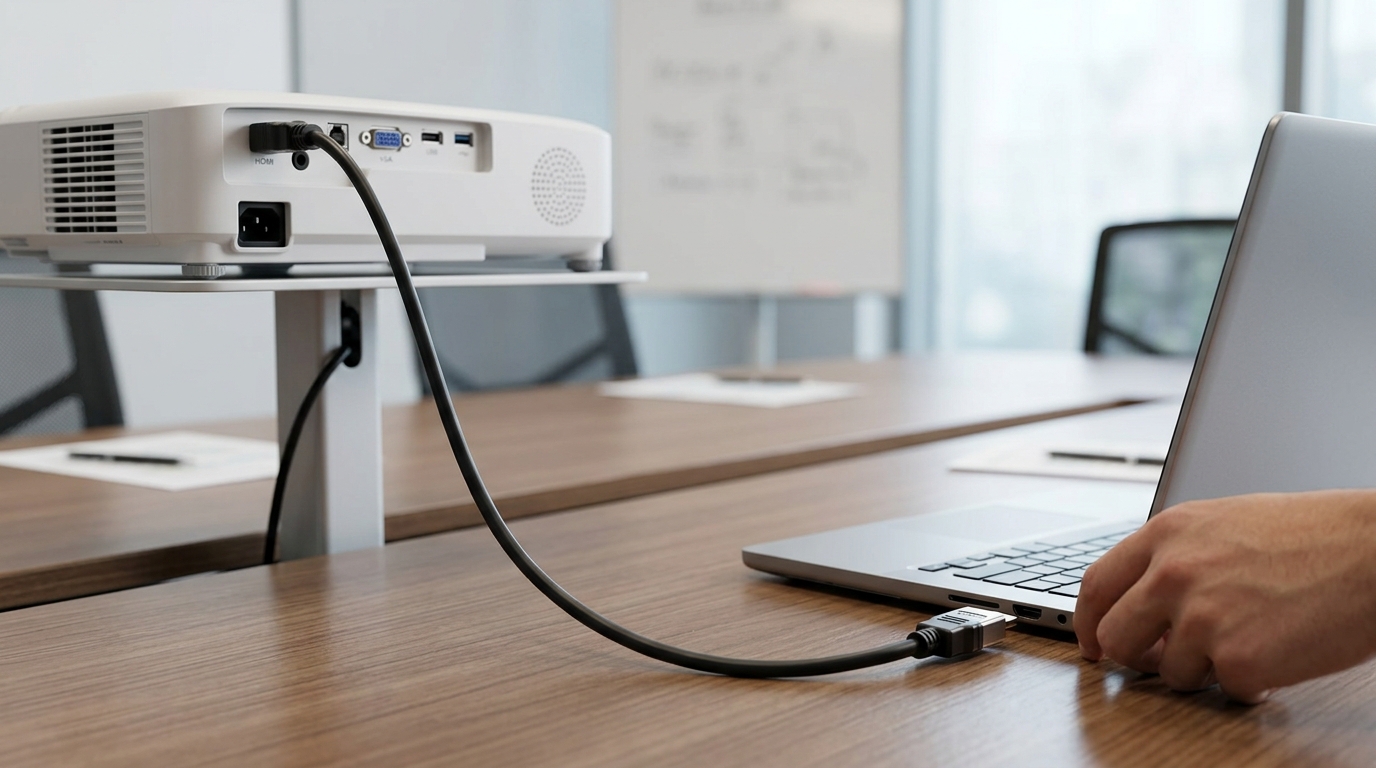
HDMI is the most common way to connect a projector to a source device. A single HDMI cable carries both digital video and audio from a laptop, streaming device, game console, or Blu-ray player, making it a straightforward choice for a stable picture.
To use it, connect the cable to the device’s HDMI output and a projector HDMI input, then select that input on the projector. If the image does not appear, check that both devices are powered on and that the projector is set to the correct HDMI port.

HDMI avoids the network setup that wireless connections may require, and it works with many current entertainment devices. It can also carry a 4K signal, although the picture you see depends on the capabilities of the source, cable, and projector.
Before buying a cable, measure the distance between the devices and leave enough slack to avoid strain on the ports. Check the projector’s specifications if you need a particular resolution or refresh rate.
Featured in this guide
4K Smart Mini Projector with 3D, Android OS, WiFi & Built-in Battery
Many slim laptops and tablets use USB-C instead of a full-size HDMI output. A compatible USB-C-to-HDMI adapter or cable may work, but the device’s USB-C port must support video output; a charging-only port will not send a picture.
Older computers may have VGA, which carries video but not audio. Check the available ports on both devices before choosing an adapter, and plan a separate audio connection if your setup requires one.
Wi-Fi casting or screen mirroring can be convenient when you want fewer cables across a room. The projector and source device must support compatible wireless methods, and some setups require both to be on the same Wi-Fi network.
Wireless performance can vary with network conditions, so HDMI is often preferable when you want a dependable connection for a movie or presentation. For more on projector features to compare, see the guide to 4K smart mini projectors.
Start with the source device’s display settings and confirm that it detects the projector. On a laptop, choose whether to duplicate the screen or extend the desktop; then set a resolution the projector supports.
Play a short video to check both picture and sound before settling in. If video works but audio does not, select the projector or your preferred speakers as the audio output on the source device.
Connect it to a device that supplies video, such as a laptop, streaming device, game console, or Blu-ray player. HDMI is a common option, but the connection you can use depends on the ports and wireless features of both devices.
Yes, if your phone supports video output through its port and you have a compatible HDMI adapter or cable. Check your phone’s specifications first, since not every USB-C phone can send video to a projector.




Leave a comment
You must be logged in to post a comment.