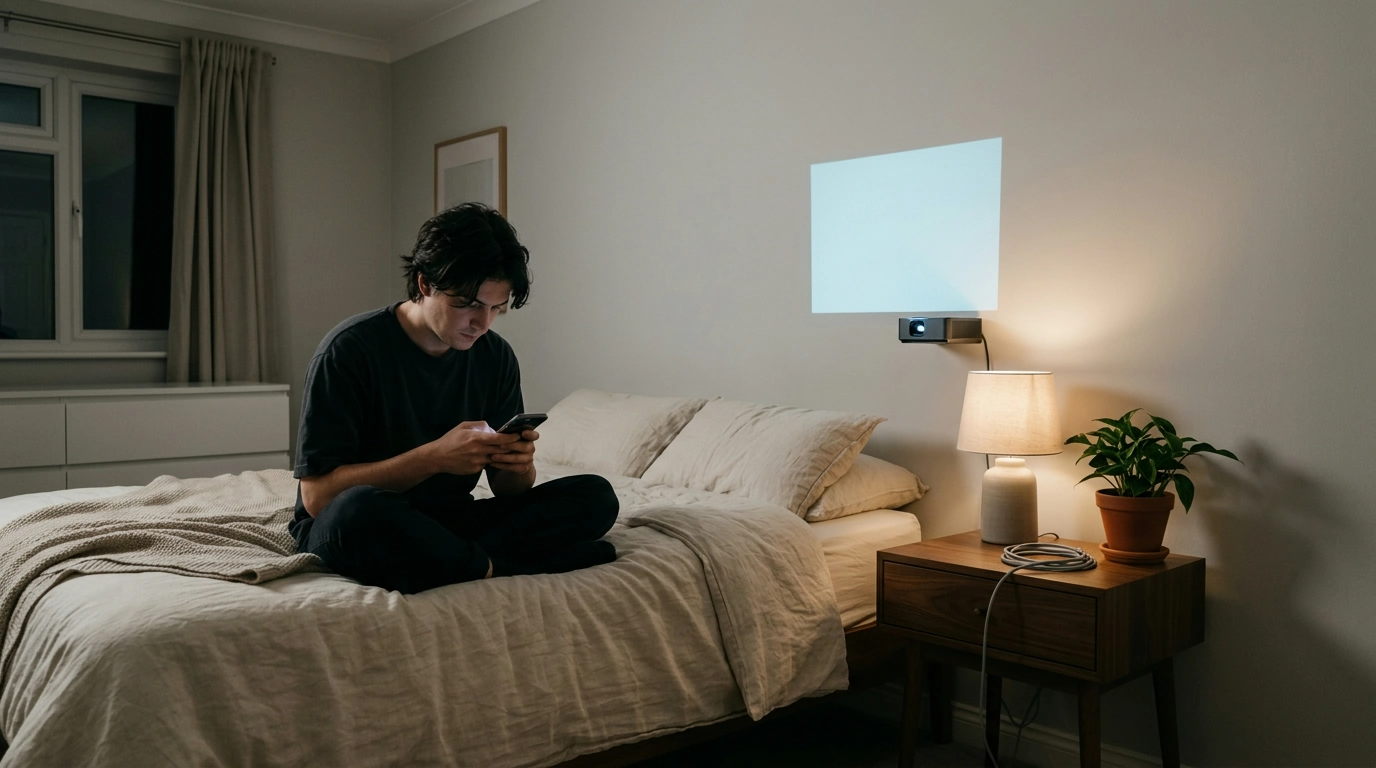
Phone Won’t Play on Your Projector? Try These Fixes
Usually, the phone and projector are connected in a way that carries a signal but not playable video. A cable may charge your phone without sending a picture, or wireless casting may show your home screen but leave a movie black. Start by checking whether the problem affects everything on your phone or only one app.
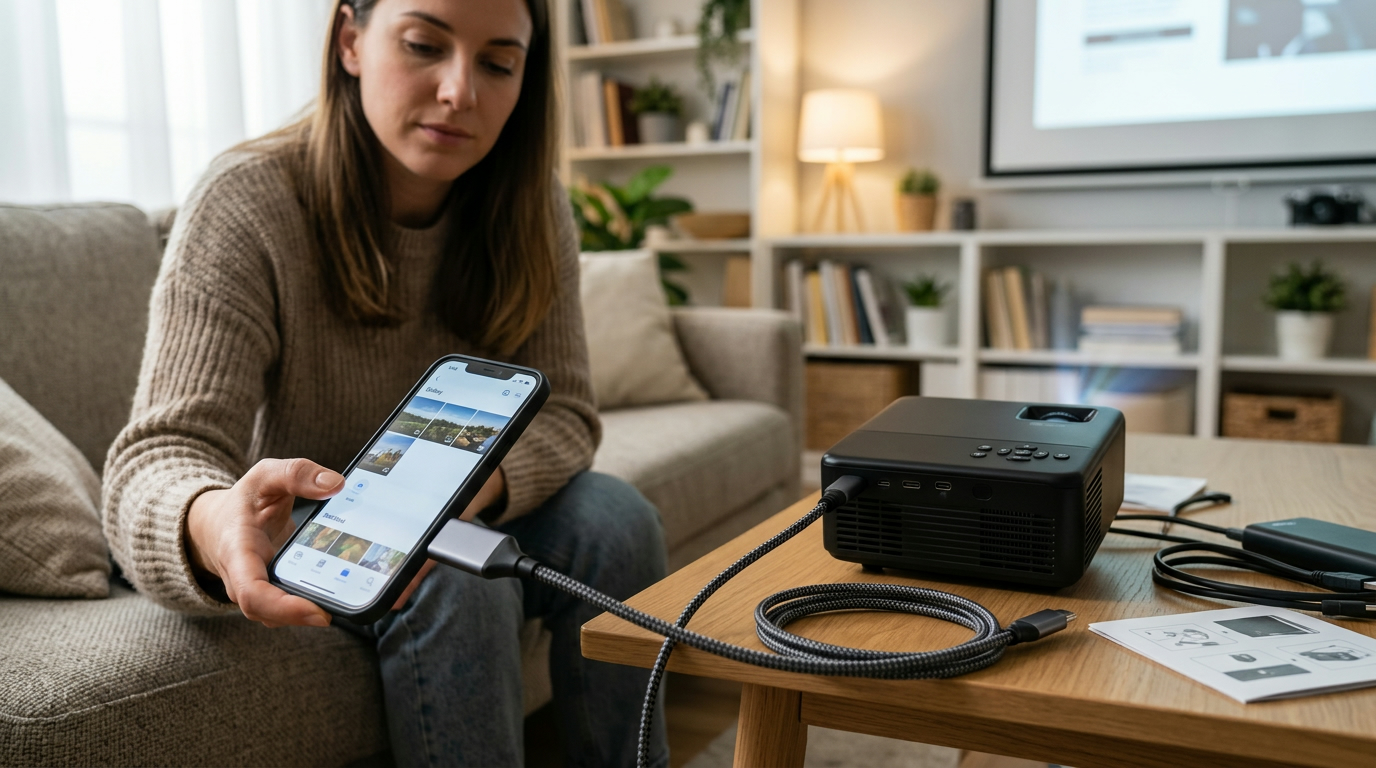
Set the projector to the input where your phone is connected, such as HDMI 1 rather than HDMI 2. If you use an adapter, confirm that it supports video output for your specific phone; a USB charging cable alone generally will not send video to a projector. Unplug and firmly reconnect each end before testing again.
Featured in this guide
4K Smart Mini Projector with 3D, Android OS, WiFi & Built-in Battery
For Wi-Fi casting, connect the phone and projector to the same Wi-Fi network, then select the projector from your phone’s screen-mirroring or cast menu. Miracast, AirPlay, and Chromecast are different technologies, so a projector’s “wireless” label does not guarantee it supports your phone’s preferred method. Check the projector’s supported protocols before buying an adapter.
If photos and menus appear but a movie shows a black screen, the streaming app may restrict mirroring because of content protection. Try the app installed directly on a compatible smart projector, or use a supported streaming device connected to its HDMI port. Test a photo or a locally recorded video first to separate an app limitation from a connection failure.
Restart both devices, update their software, and reconnect using the projector’s on-screen connection instructions. If the image appears without sound, check the phone’s audio output and the projector’s volume; Bluetooth audio may still be routed to headphones. For more setup considerations, see the 4K smart mini projector guide.
If your iPhone’s menus display but a movie does not, the app may block screen mirroring. Try a supported app on the projector or an HDMI streaming device instead.
Use a wireless method supported by both devices, such as AirPlay, Miracast, or Chromecast. Put them on the same Wi-Fi network and select the projector from your phone’s casting menu.
Match the projector input to your wired connection, or start casting from your phone if the projector supports it. Once the picture appears, check where your phone is sending audio.
Try Smart View if the projector supports compatible wireless screen mirroring. For a wired connection, check whether your Samsung model supports video output over USB-C and use a compatible adapter.


Leave a comment
You must be logged in to post a comment.