Connect a Projector to Smart TV Content: What Works
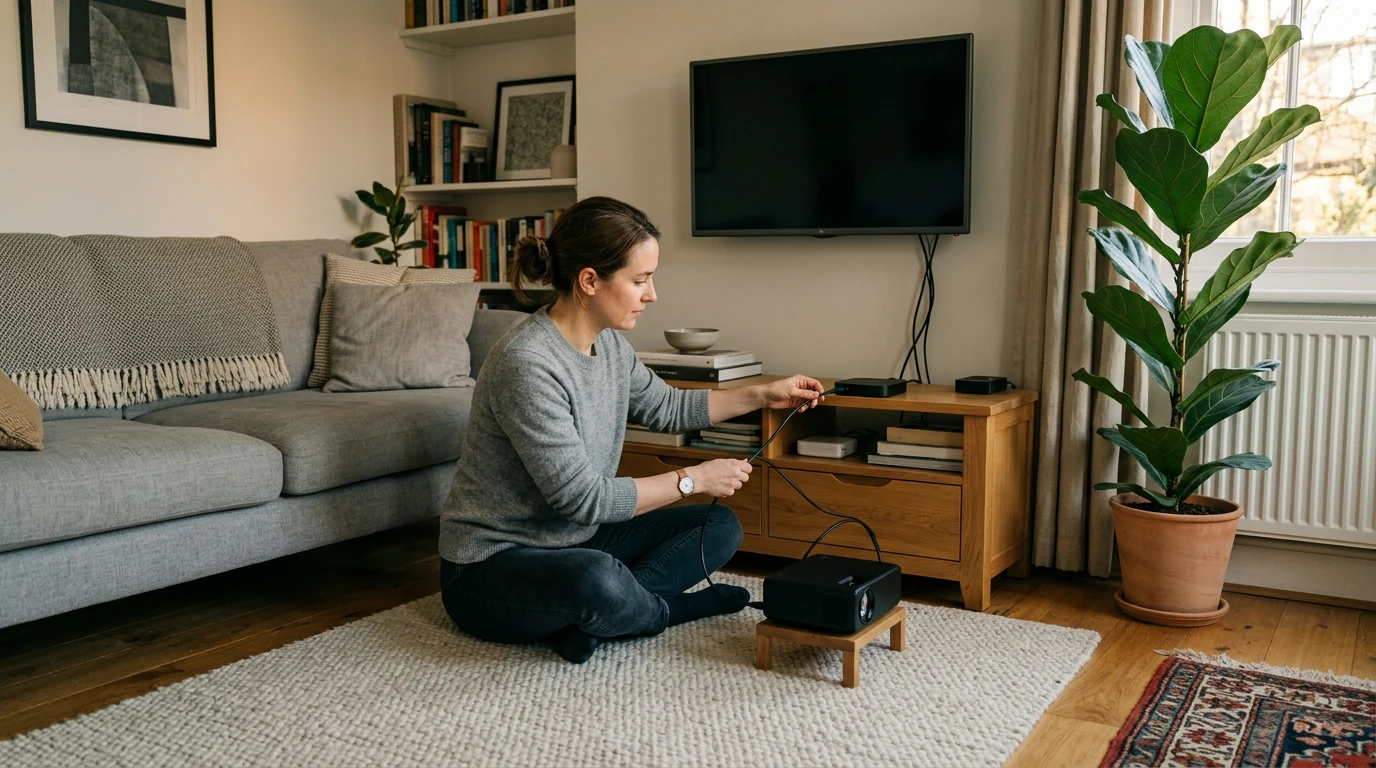
First, check whether your smart TV can send video to another display. Most TVs have HDMI inputs, not HDMI video outputs, so a cable between the TV’s HDMI port and the projector usually will not mirror the TV screen. The most reliable solution is to connect the projector to the same streaming device, cable box, or other source you use with your TV.
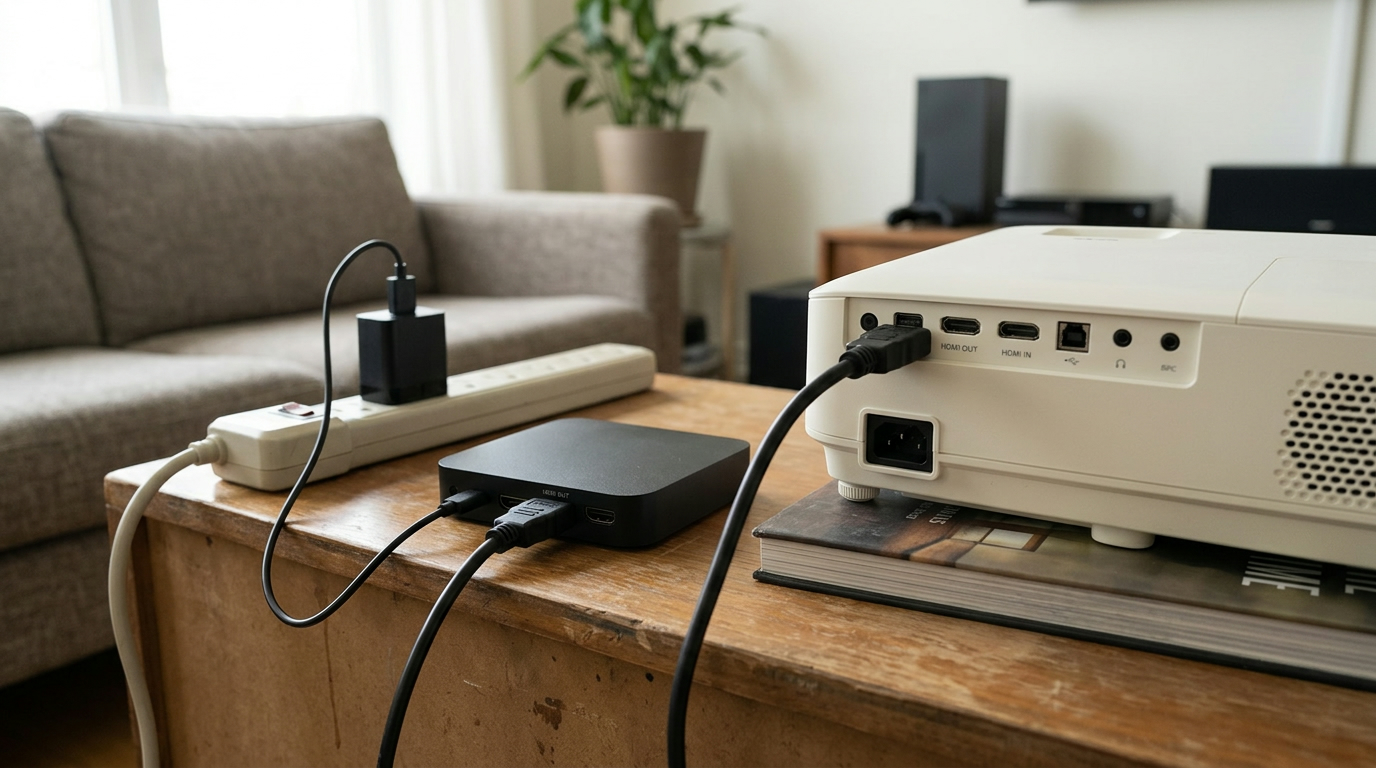
Plug a streaming stick or media player into an HDMI input on the projector, then select that input with the projector’s remote. Connect the device to Wi-Fi and sign in to your streaming apps. If the projector’s HDMI port cannot supply enough power for a streaming stick, use the stick’s included wall adapter instead of the projector’s USB port.
Featured in this guide
4K Smart Mini Projector with 3D, Android OS, WiFi & Built-in Battery
If you want the TV and projector to show the same cable box or console, connect the source to a powered HDMI splitter, then run one HDMI cable to each display. Check that the splitter supports the resolution and HDR format you plan to use. For a long cable run, choose a cable rated for the required bandwidth and test it before mounting the projector.
Some projectors support screen mirroring or casting, but that does not mean a smart TV can cast its picture to them. Many TVs are designed to receive casts rather than send their entire screen. Check both devices’ manuals for a matching wireless display feature; otherwise, cast from a compatible phone, tablet, or computer directly to the projector.
After connecting your source, select the correct projector input and set a resolution both devices support. If you see a blank screen, try a shorter HDMI cable or restart the source after the projector is on. Projector speakers may be limited, so check whether your source, projector, or sound system supports the audio connection you want. For more setup considerations, see the 4K smart mini projector guide.
Connect a streaming device, cable box, or other video source to the projector’s HDMI input, then select that input. To show the same source on both screens, use a compatible powered HDMI splitter; a TV’s HDMI input normally cannot send its picture to a projector.
Connect your cable or satellite box to the projector’s HDMI input and select that input. For over-the-air channels, use a compatible external TV tuner with an HDMI output and connect an antenna to the tuner.



Leave a comment
You must be logged in to post a comment.